The ACF repeater component with the ACF Repeater field and Elementor allows users to create dynamic data sets, where each set can contain multiple sub-fields. This means that users can easily add, modify, or remove items without needing to touch the code. By connecting this field to a display widget, users can choose how to present this data, whether in a grid, list, or table format. This flexibility is essential for adapting to different types of content, whether it be products, testimonials, or articles.
Importantly, the Repeater field is available in the free version of ACF, making it accessible to a wider range of users but will be disable if ACF PRO is installed and active.
Enable the ACF repeater field and the ACF repeater widget
The ACF plugin is installed and active.
The Elementor plugin is installed and active.
The EAC components plugin is installed and active.
In the dashboard select EAC components link and Features tab then enable the ACF repeater field entry.
After that select the Advanced tab and enable the ACF repeater option and save settings.
Now you are ready to build and display the content of repeater fields with Elementor or a shortcode.
Create a repeater and its fields
You need to know how to create a field group and associated fields, as well as how to define the rules for associating them with publications.
The widget does not support nested repeater fields. Below is a list of the fields currently supported.
After creating the field group, select the EAC repeater option in the Layout section. You can then create the dependent fields, the location rules and save change.
You can also use the ACF Option pages to make your Repeater global to your site and not attached to a particular publication, post type or template.
To use Option Pages follow this link.
Image, Text, Text Area, Email, Url, Link, Page Link, Select, Number, Date Picker, File
The repeater is created along with the fields. You can fill in the fields relating to the publications targeted by the rules defined previously.
Display ACF repeater field with a Shortcode
In the Gutenberg editor add a Shortcode block and add the attributes of the shortcode:
eac_repeater as shortcode name
field: the field key as indicated in the ACF group you created
id: post ID. Default the ID of the current post
mode: display as grid or list Default “grid”
gap: marges between item. Default “20”
col: count of columns in the grid. Default “4”
/* With default options and a gap of 40px */
[eac_repeater field='field_6897378e1020f' gap='40']
/* Displays the repeater from another publication with 3 columns */
[eac_repeater field='field_689dc2c949c3c' id='69312' col='3']
/* Displays the repeater from another publication as a list */
[eac_repeater field='field_689dc2c949c3c' id='69312' mode='list']Display ACF repeater field with Elementor
In the Elementor editor, search for the EAC repeater widget and drag and drop the icon into the preview panel.
Select the repeater and associated fields
From the Settings section, select the repeater from the list (Repeater) and the related fields (Fields). You can select only some of them.
The Display label option will display the field label and its value.
Configure the layout mode of the repeater field
From the Layout section, four display modes are available.
In Grid mode, each row of the repeater is displayed in the traditional way with the fields aligned from top to bottom.
In List mode, the fields are displayed from left to right if there is an image, or from top to bottom if there is no image.
FAQ mode is a little different, as it formats the display like an FAQ. This is a Question/Answer mode, so you should have two fields, one Text (Question) and one textArea (Answer). The Text Question field will be used as a title for each row.
Table mode displays the contents of the fields in a table with the labels of each field as column headers.
For Grid and List modes, you must select the number of columns per row, define the attributes of images (Lazy load, Ratio) if they exist, horizontal and vertical alignment.
The FAQ mode is JSON-LD compatible because it complies with the structured data guidelines defined by Schema.org, providing users with rich snippets and improving overall SEO.
With Table mode, you can use the File field and associate PDF files that will be displayed in a modal box as in this example (Follow this link). With other Text fields, you can build a table with multiple files that can be viewed online.
Please note that the File field only supports PDF files.
Set the content of the repeater field
Each display mode has its own content, so if you have a subfield of type URL, link, or link to a page, you can display that link as a button. For FAQ mode, you can choose the Open/Close icon for an FAQ item.
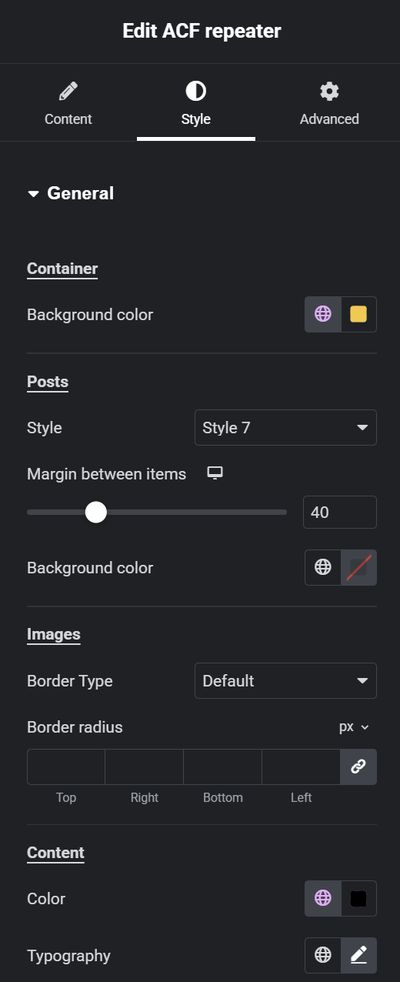
Apply styles to the repeater field
The styles applicable to the different elements are also related here to the display mode selected in the Content section.
The styles applied to fields are global in the sense that they apply uniformly to all fields.
However, each subfield has its own class + subfield label.
For a text field, you will find the class ‘acf-repeater_text name’ with ‘name’ as the field label when it is created.
You can see all these classes by opening the browser’s console to inspect the elements and apply a specific style to it by following this link.