The ACF repeater block allows users to create dynamic data sets, where each set can contain multiple subfields. This means that users can easily add, modify, or remove items without needing to touch the code. By connecting this field to a display widget, users can choose how to present this data, whether in a grid, list, or table format. This flexibility is essential for adapting to different types of content, whether it be products, testimonials, or articles.
Importantly, the Repeater field is available in the free version of ACF, making it accessible to a wider range of users but will be disable if ACF PRO is installed and active.
Enable the ACF repeater field and repeater block
The ACF plugin is installed and active.
The EAC components plugin is installed and active.
In the dashboard select EAC components link and Features tab then enable the ACF repeater field entry.
After that select the WordPress tab and enable the ACF repeater block option and save settings.
Now you are ready to build and display the content of a repeater field.
Create a repeater field and its subfields
You need to know how to create a field group and associated fields, as well as how to define the rules for associating them with publications.
The widget does not support nested repeater fields. Below is a list of the fields currently supported.
After creating the field group, select the EAC repeater option in the Layout section. You can then create the dependent fields, the location rules and save change.
You can also use the ACF Option pages to make your Repeater global to your site and not attached to a particular publication, post type or template.
To use Option Pages follow this link.
Image, Text, Text Area, Email, Url, Link, Page Link, Select, Number, Date Picker, File
The repeater is created along with the fields. You can fill in the fields relating to the publications targeted by the rules defined previously.
Select the repeater source and its subfields
In the block editor, search for the EAC repeater block and drag and drop the icon into the preview panel.
In the Settings tab, Source section, select the repeater’s origin: either the current publication or another publication by its ID, especially if you have enabled ACF’s Option Pages.
Then select the repeater from the list, and all corresponding subfields will be automatically loaded. You can then choose to display only those that will be published.
Configure the layout mode of the repeater field
From the Layout section, four display type are available.
– Grid mode, each row of the repeater is displayed in the traditional way with the fields aligned from top to bottom.
– List mode, the fields are displayed from left to right if there is an image, or from top to bottom if there is no image.
– FAQ mode is a little different, as it formats the display like an FAQ accordion. See the next section.
– Table mode displays the contents of the fields in a table with the labels of each field as column headers.
For Grid and List modes, you must select the number of columns per row for each device (Responsive).
Configure the layout of an accordion FAQ
The FAQ mode is slightly different as it formats the display like an accordion FAQ.
It’s a Question/Answer format, so you need two fields: a text field (Question) and a text area field (Answer). The Question text field will serve as the title, therefore, you need to specify its level or simply wrap it in a DIV tag (Default).
You can then determine the block width for each device.
By selecting FAQ mode, the block will automatically generate a compatible LD-JSON script. It adheres to the structured data guidelines defined by Schema.org, thus providing users with rich snippets and improving overall SEO.
Configure image
In the Image section, select the best image quality and optionally apply an aspect ratio.
If you selected a ‘List’ display type in the layout, you can define the appropriate image width.
Configure link
In the Link section, convert the link into a button, apply the URL, Link or Page link globally to each item and enable ‘nofollow’ to prevent the target of each link from being tracked and indexed by search engines.
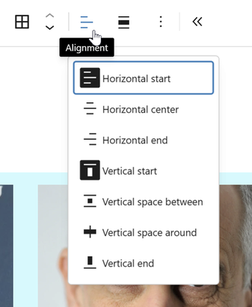
Configure text alignment
Configure the spacing
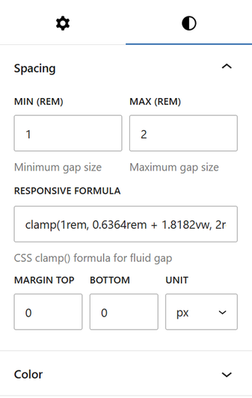
In the Styles tab, under the Spacing section, you can define the gap between items that will adapt to all types of devices.
To do this, you must determine the lower and upper limits (Min and Max REM units) so that the block calculates the optimal gap relative to the viewport (320px to 1200px). The CSS formula (clamp) that will be used is located in the field Responsive Formula.
In addition, you will need to specify the top and bottom margins to be applied to the block, if applicable.
The padding is automatically calculated based on half the result of the Clamp formula.
Configure typography
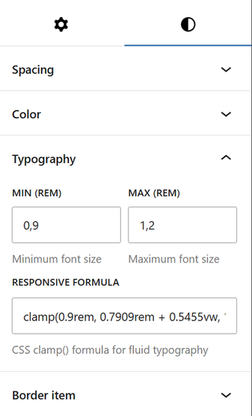
In the Styles tab, under Typography section you can define a fluid font that adapts to all types of devices.
To do this, you must determine the lower and upper limits (Min and Max REM units) so that the block calculates the optimal font size relative to the viewport (320px to 1200px). The CSS formula (clamp) that will be used is located in the field Responsive Formula.
Other styles
Two other sections: Color, where you specify the background colors of the block, the background color of the items, and the text color; and Border item, to apply a predefined or custom style to each item.
Use the Advanced section of the settings tab
Nothing looks more like one text field than another text field with ACF. To differentiate and apply alignment, color, font size… to a specific subfield, you need to add a class in the settings tab, Advanced section and define the CSS to modify the behavior of the field’s content.
Each field generated by the block is associated with a specific class, always formatted with:
“acf-repeater__” + field type + space + field slug
Ex: class=”acf-repeater__textarea filmography”
From there, by adding your own class, you can modify the design of a field.
.your-own-class .acf-repeater__textarea.filmography {
align-self: center;
font-size: 20px;
color: green;
}