Simple Gutenberg block to display a free‑version ACF gallery field in a fully configurable grid—no code required.
The block lets you select an ACF Gallery field, set columns, spacing, alignment, and image order, and choose link behavior (file or image) and captions. It outputs a responsive, accessible markup (alt attributes, semantic elements) and works seamlessly in the visual editor.
Documentation covers installation, adding the block, selecting the ACF field, presentation settings, and sample CSS for custom styling. Perfect for quickly adding ACF galleries to modular layouts.
Enable the ACF gallery field and gallery block
The ACF plugin is installed and active.
The EAC components plugin is installed and active.
In the dashboard select EAC components link and Features tab then enable the ACF gallery field entry.
After that select the WordPress tab and enable the ACF gallery block option and save settings.
Now you are ready to build and display the content of a gallery field.
Create a gallery field
You need to know how to create a field group and associated fields, as well as how to define the rules for associating them with publications.
After creating the field group, select the EAC gallery option in the Content section. You can then create the location rules and save change.
You can also use the ACF Option pages to make your Gallery global to your site and not attached to a particular publication, post type or template. To use Option Pages follow this link.
The gallery is created. You can fill in the field relating to the publications targeted by the location rule defined previously.
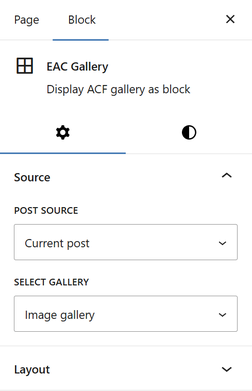
Select the gallery source
In the block editor, search for the EAC gallery block and drag and drop the icon into the preview panel or /eac in the preview.
In the Settings tab, Source section, select the gallery’s origin: either the current publication or another publication by its ID, especially if you have enabled ACF’s Option Pages then select the gallery from the list.
Configure the layout mode
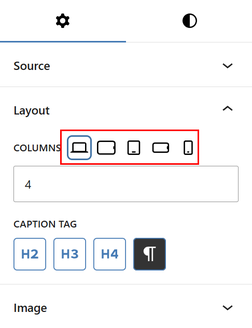
From the Layout section you must select the number of columns per row for each device (Responsive).
You need to specify caption level or simply wrap it in a DIV tag (Default).
Configure image
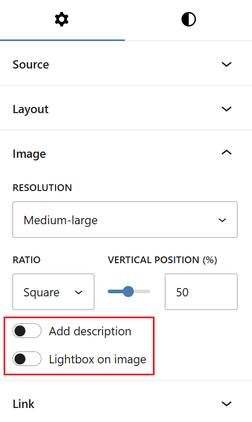
In the Image section, select the best image quality and optionally apply an aspect ratio.
You can add the description using the “Add description” option, which adds the content from the attachment’s Description field.
If the Description field is empty and the attachment is linked to a post or WooCommerce product, the post exerpt or the product’s long description field will be used as the content.
You can also open the images in a viewer by enabling the “Lightbox on image” option.
Configure link
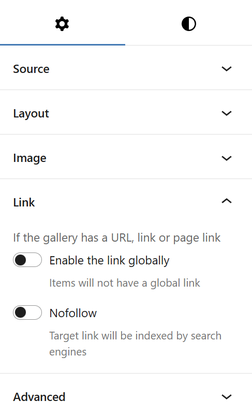
In the Link section apply the URL globally to each item if option ‘Lightbox on image‘, section ‘Image’ is disable and enable ‘nofollow’ to prevent the target of each link from being tracked and indexed by search engines.
The link construction is automatic; either the attachment is linked to a publication (Uploaded to column of the media library), then the URL will point to that publication or you have created an ACF field group (URL, Link or Page link) with the location rule “Attachment”, then this link will be used as the URL.
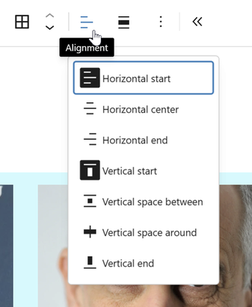
Configure text alignment
Configure the spacing
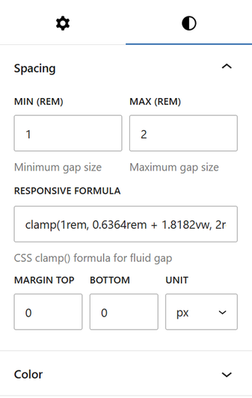
In the Styles tab, under the Spacing section, you can define the gap between items that will adapt to all types of devices.
To do this, you must determine the lower and upper limits (Min and Max REM units) so that the block calculates the optimal gap relative to the viewport (320px to 1200px). The CSS formula (clamp) that will be used is located in the field Responsive Formula.
In addition, you will need to specify the top and bottom margins to be applied to the block, if applicable.
The padding is automatically calculated based on half the result of the Clamp formula.
Configure typography
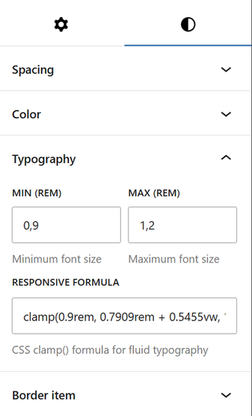
In the Styles tab, under Typography section you can define a fluid font that adapts to all types of devices.
To do this, you must determine the lower and upper limits (Min and Max REM units) so that the block calculates the optimal font size relative to the viewport (320px to 1200px). The CSS formula (clamp) that will be used is located in the field Responsive Formula.
Other styles
Two other sections: Color, where you specify the background colors of the block, the background color of the items, and the text color; and Border item, to apply a predefined or custom style to each item.
Use the Advanced section of the settings tab
In the settings tab, Advanced section define the CSS to modify the behavior of the field’s content.
Each field generated by the block is associated with a specific class, always formatted with:
“acf-gallery__caption” for the title
“acf-gallery__description” for the description
From there, by adding your own class, you can modify the design of a field.
.your-own-class .acf-gallery__caption {
align-self: center;
font-size: 18px;
font-weight: 500;
color: blue;
}